How to Move Containers in Elementor Easily (2026 Guide)
Learn how to move containers in Elementor with this step-by-step guide. Discover multiple ways to rearrange sections, duplicate layouts, and organize your website efficiently.
How to Move Containers in Elementor
Building a well-structured website in Elementor often requires rearranging content as your design evolves. Whether you’re redesigning a landing page or adjusting your homepage layout, knowing how to move containers efficiently can save time and improve your workflow.
Elementor’s Flexbox Containers make it easy to reposition content without rebuilding sections from scratch. In this guide, we’ll walk through several methods for moving containers while keeping your page organized and responsive.
What Are Containers in Elementor?
Containers are the primary layout building blocks in modern Elementor websites. Instead of relying on traditional sections and columns, containers use Flexbox technology to provide greater flexibility when arranging elements.
With containers, you can:
- Organize widgets more efficiently
- Create responsive layouts
- Align content precisely
- Build complex page structures with less effort
- Improve overall website performance
Understanding how containers work makes editing pages much faster and more intuitive.
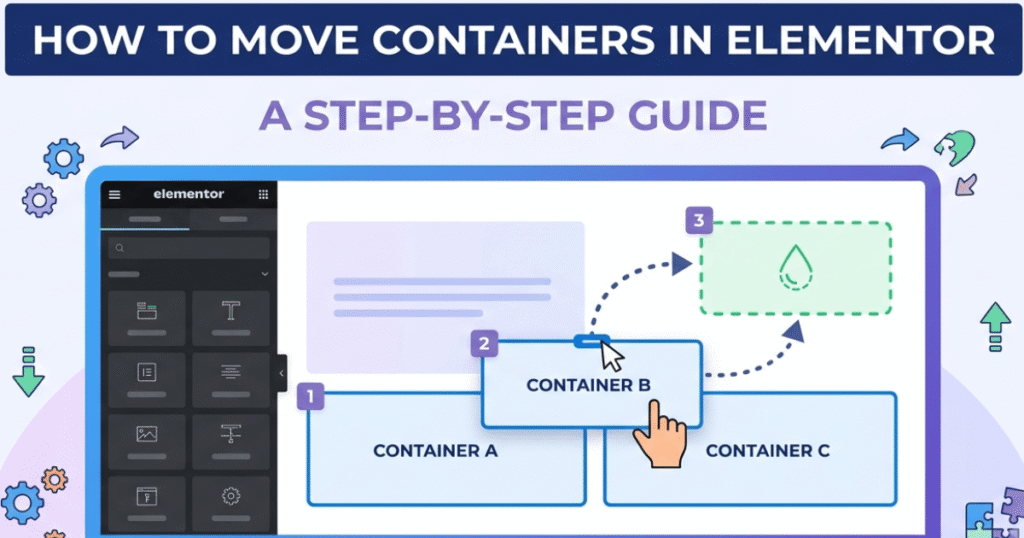
Method 1: Drag and Drop Containers
The simplest way to move a container is by dragging and dropping it within the Elementor editor.
Steps:
- Open the page in Elementor.
- Hover over the container until the handle appears.
- Click and hold the container handle.
- Drag the container to its new position.
- Release the mouse to place it.
Elementor automatically highlights possible drop locations, making it easier to position containers accurately.
Method 2: Use the Navigator Panel
For pages with many nested containers, the Navigator provides a faster way to reorganize your layout.
To access it:
- Right-click anywhere in the editor.
- Select Navigator.
- Locate the container you want to move.
- Drag it to a different position within the Navigator.
This method is especially useful for complex pages where selecting containers directly becomes difficult.
Method 3: Copy and Paste Containers
If you want to duplicate an existing design while placing it elsewhere on the page, copying and pasting containers is an efficient option.
Simply:
- Right-click the container.
- Select Copy.
- Right-click the destination area.
- Choose Paste.
This preserves all widgets, styles, and settings within the container.
Method 4: Duplicate a Container
Instead of creating a layout from scratch, you can duplicate a container and modify the copied version.
To duplicate:
- Right-click the container.
- Select Duplicate.
- Drag the duplicated container to the desired location.
- Edit the content as needed.
This is particularly useful when building pages with repeated layouts.
Organizing Nested Containers
Nested containers help organize more advanced layouts, but they can become difficult to manage if not structured properly.
Some helpful practices include:
- Group related content together.
- Keep the nesting structure simple.
- Rename containers using the Navigator.
- Remove unused containers.
- Maintain consistent spacing throughout the page.
A well-organized structure makes future edits much easier.
Tips for Moving Containers Safely
Before making major layout changes, consider these best practices:
1. Save Your Progress
Regularly save your work to avoid losing changes.
2. Check Responsive Views
After moving containers, review the layout on desktop, tablet, and mobile devices.
3. Avoid Overlapping Content
Ensure widgets remain aligned after repositioning containers.
4. Keep Consistent Spacing
Maintain uniform padding and margins to preserve a professional appearance.
5. Preview Before Publishing
Always preview your page to confirm everything displays correctly.
Common Mistakes to Avoid
Moving containers is straightforward, but these common mistakes can affect your design:
a. Accidentally Nesting Containers
Dropping a container inside another unintentionally can disrupt your layout.
b. Ignoring Mobile Layout
A container that looks perfect on desktop may require adjustments for smaller screens.
c. Inconsistent Padding
Different spacing values between containers can make a page look unbalanced.
d. Editing the Wrong Container
Use the Navigator to confirm you’re modifying the correct container, especially on complex pages.
Why Flexbox Containers Improve Workflow
Compared to traditional sections and columns, Flexbox Containers provide greater flexibility and simplify page editing.
Some key advantages include:
- Faster page creation
- Cleaner page structure
- Better responsive design
- Improved layout control
- Enhanced website performance
For new Elementor projects, using containers is generally the recommended approach.
Frequently Asked Questions
1. Can I move containers without affecting my content?
Yes. Moving a container keeps its widgets, styles, and settings intact.
2. Can I move containers between pages?
Yes. Copy the container from one page and paste it into another Elementor page.
3. What happens if I accidentally move a container?
You can immediately use Elementor’s Undo feature or press Ctrl + Z to restore the previous layout.
4. Are Flexbox Containers available in Elementor Free?
Yes. Flexbox Containers are available in Elementor Free, although some advanced design features require Elementor Pro.
Conclusion
Moving containers in Elementor is a simple but essential skill for building professional websites. Whether you’re rearranging page sections, duplicating layouts, or organizing nested containers, Elementor provides several tools to make the process efficient and user-friendly.
By using drag-and-drop editing, the Navigator panel, and responsive previews, you can keep your website organized while maintaining a clean and consistent design across all devices.